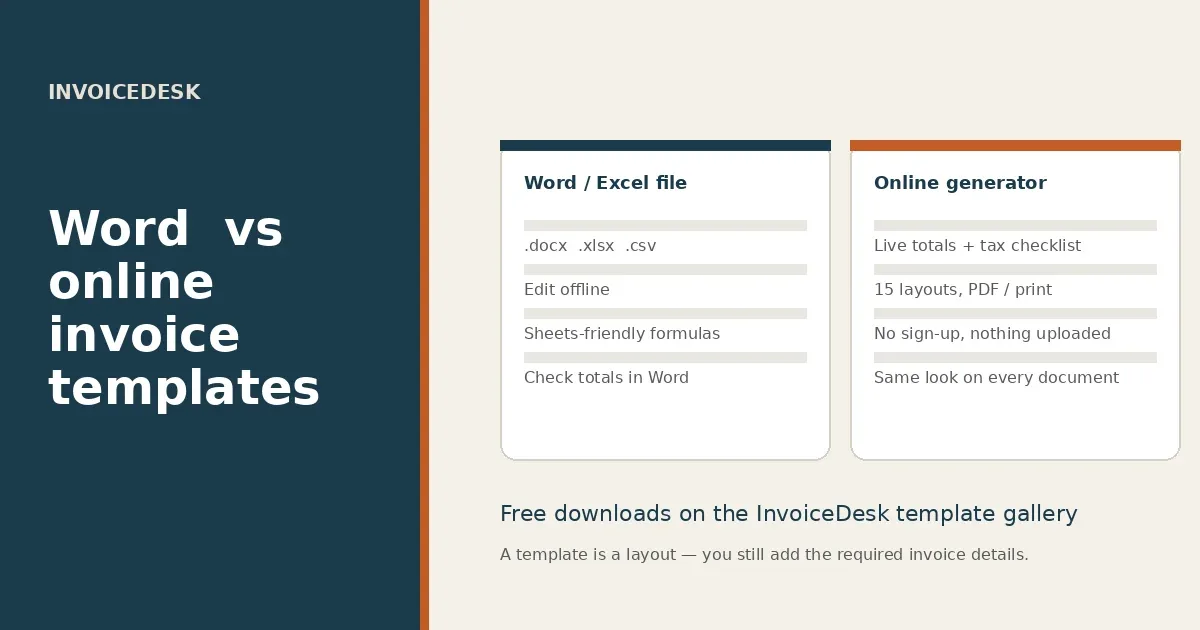
A Word or Excel invoice template is a file you fill in, save and attach. An online invoice generator is a page that lays the same information out, checks the obvious gaps and gives you a PDF. Both can produce a professional invoice. They are not interchangeable, and the better choice depends on how you work, not on which phrase you typed into a search box.
InvoiceDesk now offers both: a live invoice generator that runs in your browser with no sign-up, and downloadable Word, Excel and CSV templates from the template gallery. This article explains when each format helps, what neither file can do for you, and how to avoid sending a handsome document that is missing a required detail.
Quick answer: use a Word or Excel template when you need a file you can edit offline, store in a shared drive, or hand to someone who will not open a web tool. Use the online generator when you want live totals, a tax checklist, a choice of layouts and a one-click PDF. In either case the legal content — who is billing, who is being billed, a unique number, dates, a description and the tax you charged — still has to be on the document.
What people mean by an invoice template
“Invoice template Word” and “invoice template Excel” are some of the most common ways to ask for a starting layout. Sometimes the person wants a .docx they can open in Microsoft Word or Google Docs. Sometimes they want a spreadsheet that will add the lines up. Sometimes they really want a finished PDF, and a downloadable file is just the phrase they know.
A template, in any of those formats, is only a layout. It is not a tax invoice until you put the required information in it, and it is not legal or tax advice. Official guidance on what a business invoice should contain is published by tax authorities, for example GOV.UK on invoicing and taking payment and the IRS page on recordkeeping for small businesses. The fields on a good template exist to make that information easy to see, not to replace it.
When a Word template is the right tool
A Word invoice is a familiar document. Anyone with Word, Google Docs or LibreOffice can open a .docx, type over the sample text and save a copy for each client. That matters in a few everyday situations.
- You work offline, or you are on a machine where you would rather not leave a draft in a browser.
- A client or accounts team has asked for a Word file they can annotate or put on their letterhead.
- You already keep client paperwork in a folder of Word documents and want the invoice to live next to the contract.
- You need to change wording freely — a long scope note, a bilingual block, a clause your lawyer has given you — without being limited by a web form.
The limitation is arithmetic. A normal Word table will not recalculate Qty × Rate, tax and the amount due when you change a figure, unless you insert formula fields yourself and know how they behave. The InvoiceDesk Word invoice template is a clear one-page layout with From, Bill to, dates, a line-item table, totals and payment details. It does not auto-total. Check every amount before you send it.
Word is also a weak place to keep a sales ledger. If you need a running list of invoices and payments, a spreadsheet or a statement of account is the better document, and bookkeeping software is the better system once the volume grows.
When Excel or Google Sheets is the right tool
A spreadsheet invoice earns its place when the numbers have to move. Qty × Rate on each line, a subtotal, tax at a rate you can change, a discount, shipping and a balance due: those are ordinary spreadsheet jobs.
The InvoiceDesk Excel invoice template uses only basic formulas — multiplication, SUM, MAX and ROUND. There is no VBA and no Excel-only function, so you can open the same file in Microsoft Excel or upload it to Google Drive and open it in Google Sheets. The tax rate and the input cells for discount, shipping and amount paid are clearly marked; the other totals are formulas you should not type over.
A CSV version is there if you want the same fields as a plain text file you can import into Sheets, Excel or another tool and style yourself. The CSV has values only, not formulas.
Spreadsheets shine when you reuse the file, change a rate or a quantity often, or want a format your accountant already works in. They are less convenient when you care about typography and a polished one-page PDF. You can export a PDF from Excel or Sheets, but you will spend time on print areas, column widths and page breaks. If the document’s job is to look finished and travel as a PDF, the online generator is usually faster.
When the online generator is the better choice
The InvoiceDesk invoice generator is built for the moment you actually send the bill. You fill in the same fields, the totals update as you type, and you download a PDF, print the page or save a PNG. Nothing is uploaded and you do not create an account. There is no cap and no watermark.
That is the better path when you want any of the following:
- Live totals, discounts, shipping and tax, including tax-inclusive prices if you need them.
- A country edition (US, UK, Canada, Australia, New Zealand, Ireland and others) with the right currency, date format and a short compliance checklist.
- A choice of 15 layouts, colours and fonts, on A4 or US Letter, without wrestling a Word theme or a print area.
- The same look on a quote, receipt, credit note or other document, because they share the generator’s layouts.
- A JSON save file if you will reopen the same draft later in the same browser, or on another device after you move the file.
The online tool does not replace a Word or Excel file when someone has asked for one of those formats, and it does not store a history of invoices on a server. If you want a monthly summary of several invoices, fill in a statement of account yourself — the figures stay on your device.
What a template will not do for you
Format is the easy part. The details that make an invoice usable — and, where the rules apply, a valid tax invoice — do not appear just because the file is a .docx, a .xlsx or a PDF.
You still need a unique invoice number, the invoice date, who is billing and who is being billed, a description of what you supplied, the amounts, and the tax you charged, shown in the way your country requires. Some regions also expect a tax registration number, specific wording, or a title such as “tax invoice”. The guide to what to include on an invoice and the tax invoice guide walk through that, with links to official sources.
A template also will not:
- File the invoice with a tax authority or create a structured e-invoice (Peppol, Factur-X, XRechnung and similar).
- Know whether you should charge VAT, GST, HST or sales tax on a particular supply.
- Keep a legally sufficient archive by itself. Save a copy of what you sent, in a place you control.
- Turn a packing list or a quote into a tax invoice. Use the right document for the job; the other InvoiceDesk tools cover quotes, receipts, credit notes, packing slips and statements.
A practical way to choose
If you are sending one or two invoices a week and you want them to look consistent, start in the online generator and download a PDF. Keep a Word or Excel copy in reserve for the client who asks for a file they can edit.
If your work already lives in spreadsheets, or a partner will type the lines, start from the Excel / Google Sheets template, then export a PDF once the figures are right. If someone needs to rewrite the wording, start from the Word template and check the totals by hand.
If you are not sure, download the file you need from the invoice templates page and also open the generator. Use whichever gets a correct, complete invoice out of the door first. The format you searched for is a means to that, not the goal.
Free downloads and the live gallery
All of the following are free, with no sign-up:
- Word invoice template (.docx)
- Excel / Google Sheets invoice template (.xlsx)
- CSV invoice template (.csv)
- 15 on-screen invoice layouts you can open in the generator and export as PDF, print or PNG
The files are starting layouts. Add the legal details your country requires, replace the sample lines, and keep a copy of what you send. If a figure looks off in Word, it probably has not been checked. If a figure looks off in Excel or Sheets, look at the tax rate cell and the orange input cells before you overwrite a formula.
Frequently asked questions
Can I use the Word template in Google Docs?
Yes. Upload the .docx to Google Drive and open it with Google Docs, or open it in LibreOffice. You may need to tidy spacing after a conversion. Totals still need a manual check.
Will the Excel file work in Google Sheets?
Yes. The workbook uses ordinary formulas only. Open it in Excel, or upload it to Google Drive, or use File → Import in Sheets. Change the tax rate in the marked cell and the tax and total should update.
Is a downloaded template a tax invoice?
Only if you have added what your tax authority requires and the document reflects a real supply. The file type does not make it a tax invoice. See the tax invoice guide for the difference, country by country.
Do I have to create an account to use the online generator?
No. The generator runs in your browser, stores drafts on your device if you want them, and exports a PDF without a sign-up, a watermark or a cap.
Can I change the layout of the Word or Excel file?
Yes. That is one reason to use a file. Keep the required fields visible, and do not delete the invoice number, dates, parties, descriptions or tax lines to make the page look quieter.